
Checkpoints & Version History
Save your work, undo a bad change, and keep your app stable as you build.
Every change Leo makes to your app lives in a version history — a timeline of save points you control. A save point is called a checkpoint. Checkpoints are how you keep your app stable and recoverable: save one when things are working, and you can always come back to it if a later change goes sideways.
Think of a checkpoint like a save point in a video game. You can keep playing, but if something breaks, you reload from the last good save instead of starting over.
Opening the History panel
At the top of the Leo chat panel, click the History icon ( a clock with an arrow). That opens the History panel, where every checkpoint is listed newest-first.
See a red dot on the clock, or an "Unsaved changes" banner? That just means you've made changes since your last checkpoint. It's your cue to save a new one (below). Click the banner to see exactly which files changed.
Saving a checkpoint
- Open the History panel (clock icon).
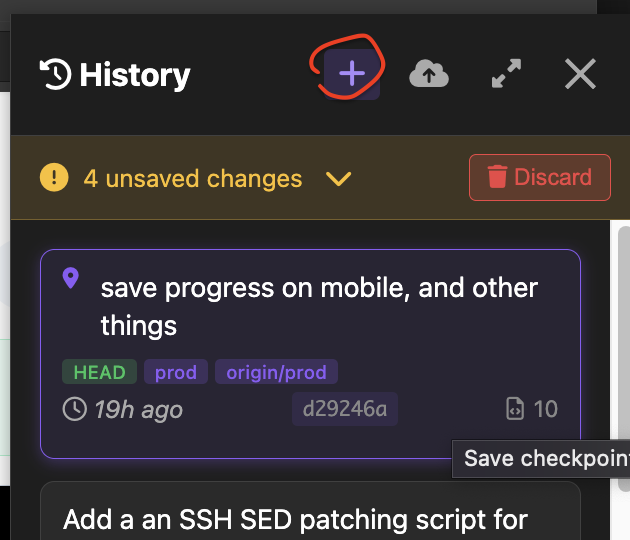
- Click the purple plus button.
- Type a short message describing your changes (e.g. "Added the invoices page") — future-you will thank you.
- Hit Save. Your work is now a labeled point in your history.
The golden habit for a stable app
Save a checkpoint whenever your app is in a good, working state — and especially before asking Leo for a big or risky change. If the change doesn't work out, you've got a clean point to roll back to. Small, frequent checkpoints with clear messages beat one giant one.
Undoing changes — two ways to go back
1. Discard unsaved changes (undo everything since your last checkpoint)
If Leo made a mess in the current session and you just want to get back to your last saved checkpoint, open the History panel and click Discard in the "Unsaved changes" banner. This throws away all changes made since your last checkpoint and returns your app to that saved state.
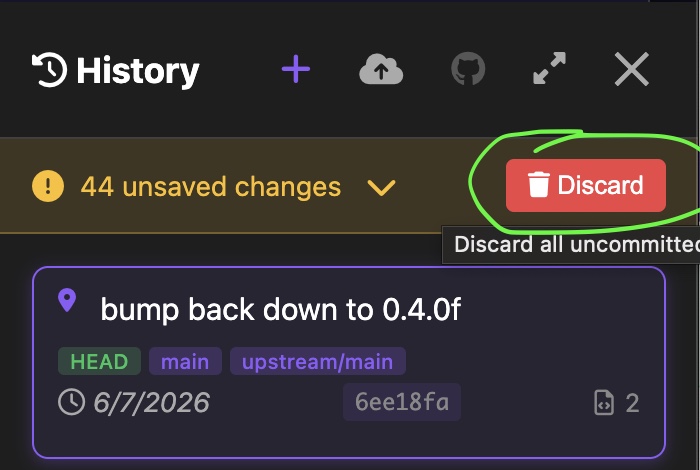
Discard can't be undone. It permanently removes any work you haven't saved to a checkpoint yet. If there's anything in the current changes you might want, save a checkpoint first (you can always roll it back later) — only discard once you're sure.
2. Roll back to an earlier checkpoint
Want to return to a version from earlier today, or last week? In the History panel, click any checkpoint to open its details. You'll see its message, when it was saved, and which files it changed. From there you can:
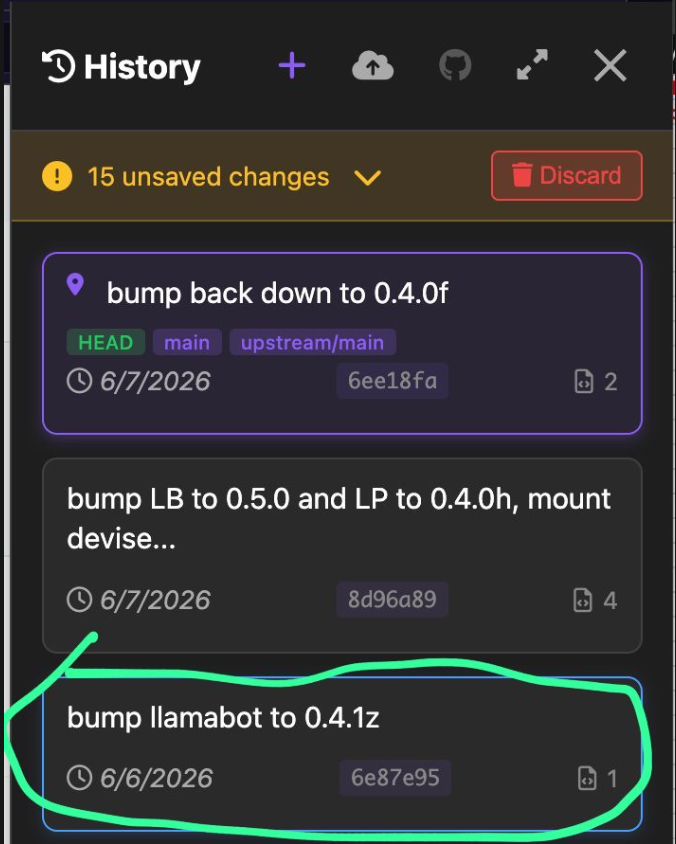
- View Full Diff — see exactly what changed in that checkpoint before you decide.
- Rollback to this commit — return your whole app to that checkpoint's state.
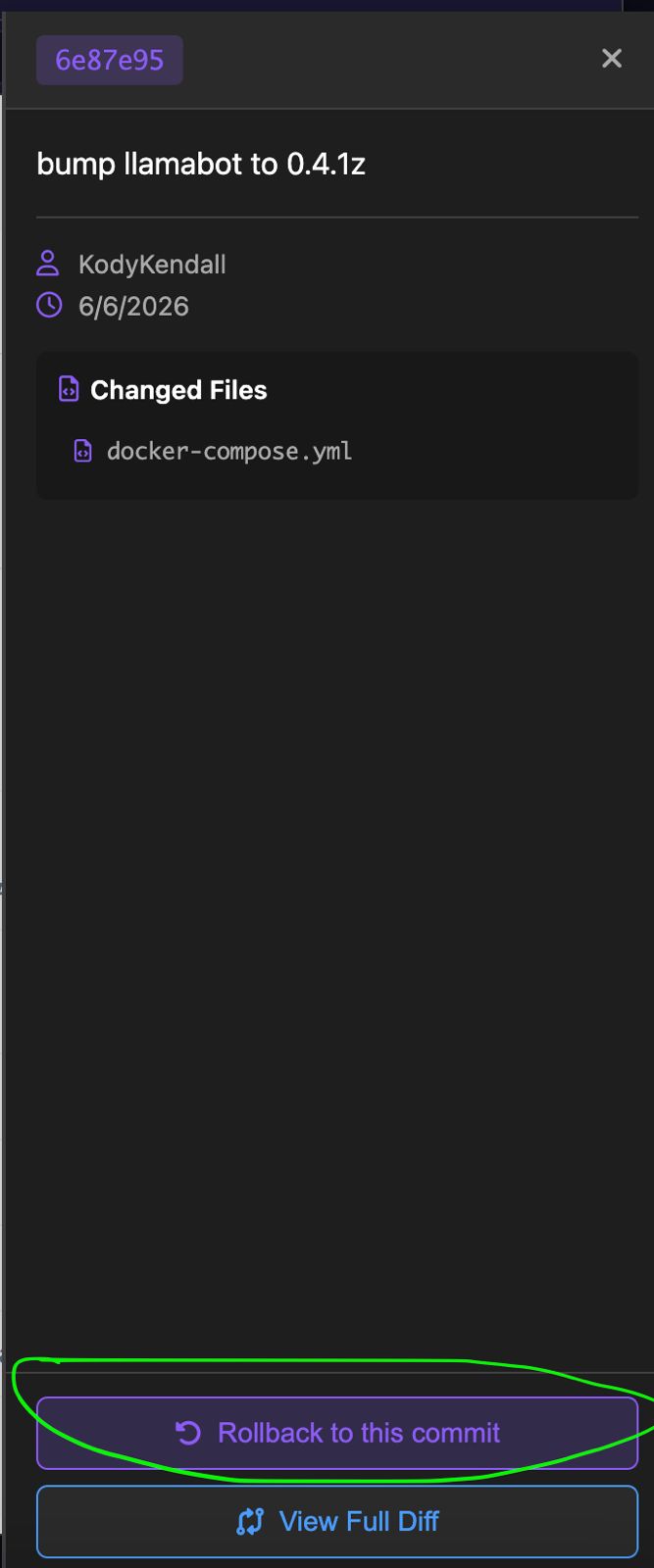
Rolling back doesn't erase your history — it moves your app back to a known-good point. Save a fresh checkpoint right after you roll back so your next changes build on a clean base. Tip: click the expand button to see the full visual history of your checkpoints.
Pushing your code to GitHub
Checkpoints live with your app by default. To keep your own copy off-platform — a backup you control, like Google Drive but for code — push your checkpoints up to GitHub:
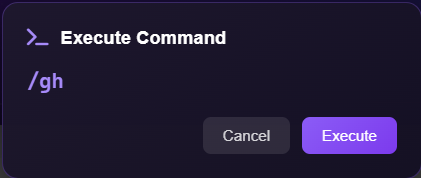
- Connect GitHub first. In Leo's chat, run
/gh(sign in), then/git-config, then/gh-copy. If you see a "Contact kody@llamapress.ai for your code" prompt, the GitHub button needs enabling for your account — just email us and we'll switch it on. - Save a checkpoint (the step above) for anything you haven't saved yet.
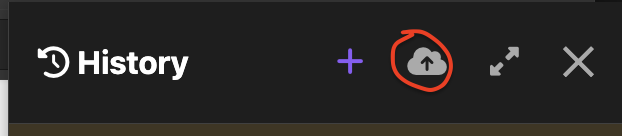
- Click the Push to remote (cloud) button to send your saved checkpoints up to GitHub.
Connect GitHub
Type /gh in Leo's chat, then /git-config, then /gh-copy.
Open History
Click the History icon (clock with indicator) at the top of the page.

Save Checkpoint
Click the purple + button, type a message, and hit Save.
Push to GitHub
Click the upward arrow button to push your checkpoints to GitHub.
Full walkthrough with screenshots: Getting Your Source Code.
What about "pulling" my code?
"Pulling" can mean a couple of different things — here's how each one works:
- Getting a copy of your code out (to view or download it) — that's the GitHub or zip route in Getting Your Source Code.
- Pushing updates from a dev app to your live app — that's the dev → live flow in Dev → Live: Pushing & Pulling Updates. We help coordinate that step.
- Platform updates — when a new version of LlamaPress is available, an Update Now banner appears in Leo. That updates the underlying platform (not your app's content) and may briefly disconnect you while it restarts.
There isn't a one-click "pull my GitHub code back into Leo" button today — your app is the working copy, and GitHub is the copy you keep. If you've edited your code directly on GitHub and want those changes back in your app, email support@llamapress.ai and we'll help you sync them.
Checkpoints vs. backups
These are two different safety nets — use both:
- Checkpoints are the manual save points you create in the History panel. You decide when to save, roll back, or discard.
- Backups are the automatic safety net — your app and its database are backed up behind the scenes (and when it goes to sleep), so your work is protected even if you forget to checkpoint. See Sleeping, Waking & Saving Your Work.
Related reading: Getting Your Source Code · Saving Your Work · Dev → Live Updates · Leo Tools & Features