
Running Claude Code in Your Terminal
Use your own Claude.ai subscription to work on your app from the built-in terminal.
Your LlamaPress app comes with a built-in code editor and a terminal. If you have your own Claude.ai subscription, you can run Claude Code in that terminal. Claude Code is Anthropic's command-line coding agent. It reads and edits the same files Leo works on, so you can use both tools on the same app.
The short version: Open the Code tab, sign in with your
VS Code password, type clauded in the terminal, then sign in with your
Claude.ai account. The whole setup takes about five minutes, and you only do it once.
Before you start
You need two things.
- A paid Claude.ai subscription (Claude Pro or Claude Max). Claude Code bills against your own Anthropic account, not your LlamaPress plan. You can sign up at claude.ai.
- Your VS Code password. This is the password for the Code tab in your app. Email support@llamapress.ai and ask a LlamaPress admin for it. We will send it to you.
This is an advanced feature. Claude Code edits the real files of your live app. You do not need it to build with LlamaPress — Leo does the same work in plain chat. Use Claude Code only if you are comfortable with a terminal. Make a checkpoint before you start, so you can roll back if something breaks.
Step 1 — Open the Code tab and sign in
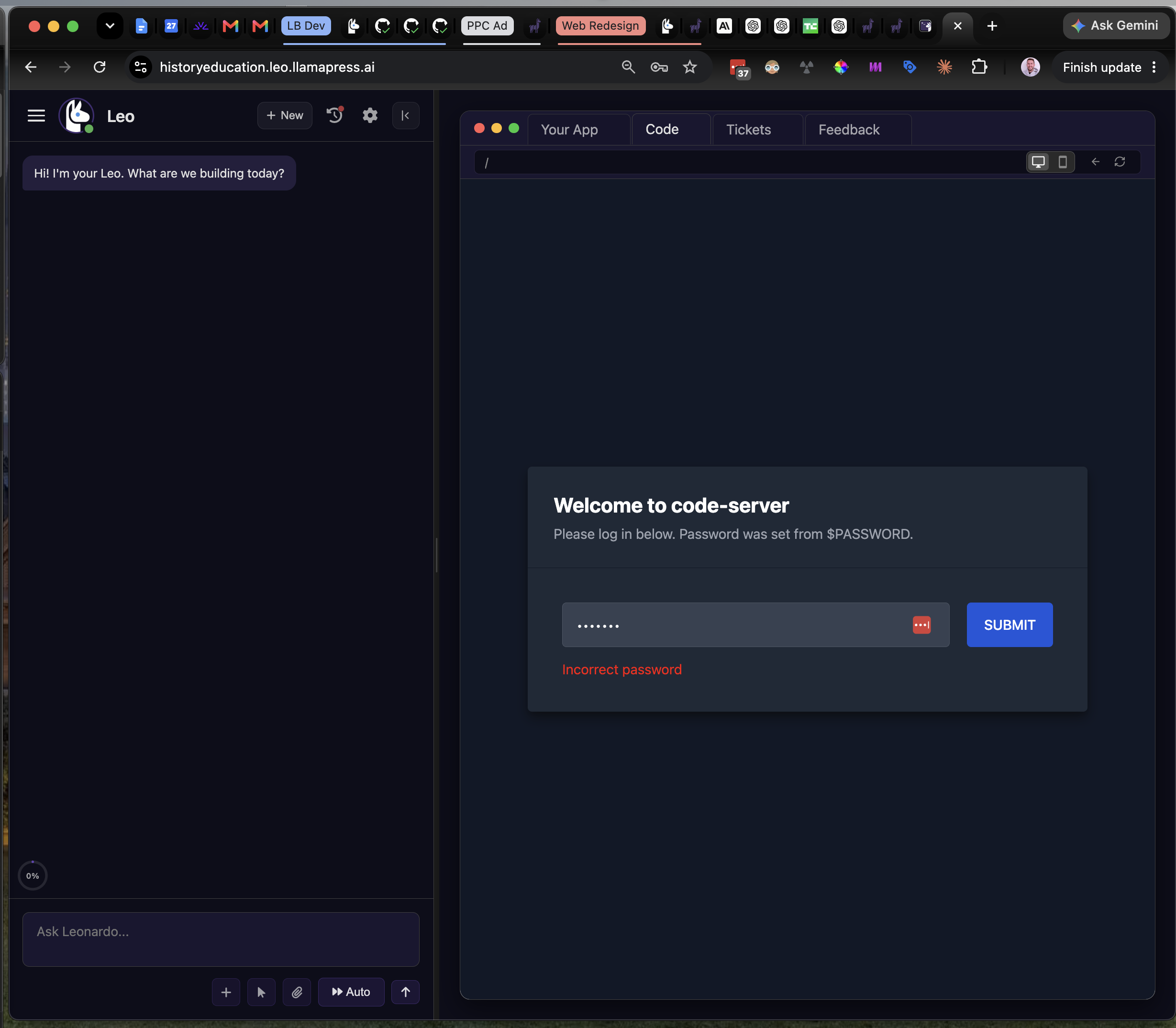
Open your app. Click Code in the top bar, next to Your App. A screen titled Welcome to code-server appears. Type your VS Code password into the box. Click the blue SUBMIT button.
Step 2 — Open the terminal and start Claude Code
The code editor loads. Look at the bottom of the editor for a panel labelled
TERMINAL. You should see a green prompt that ends in
~/Leonardo$. Click inside that panel. Type clauded and press
Enter.
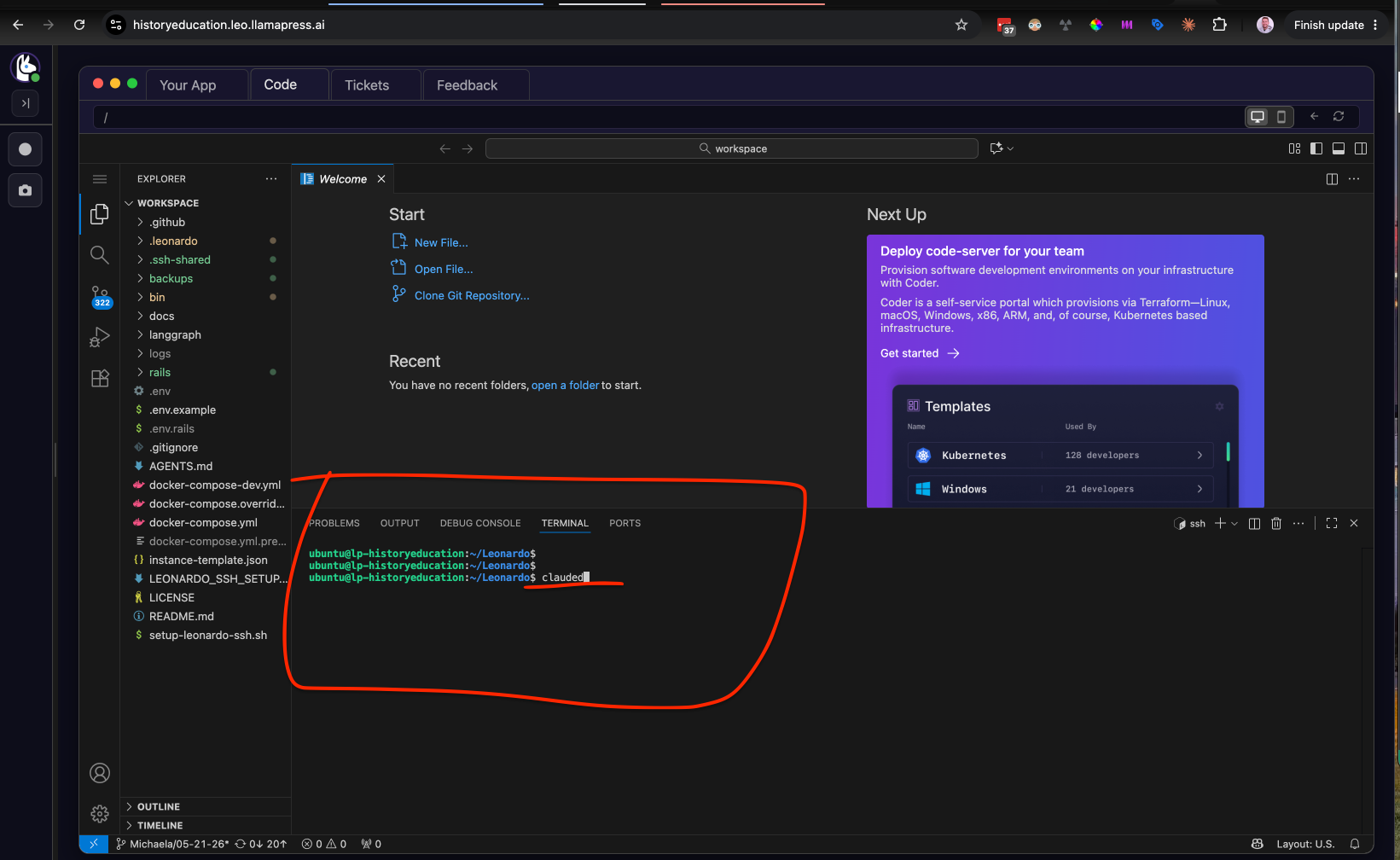
If the terminal panel is not showing, open the editor menu and choose Terminal → New Terminal.
Step 3 — Choose a text style
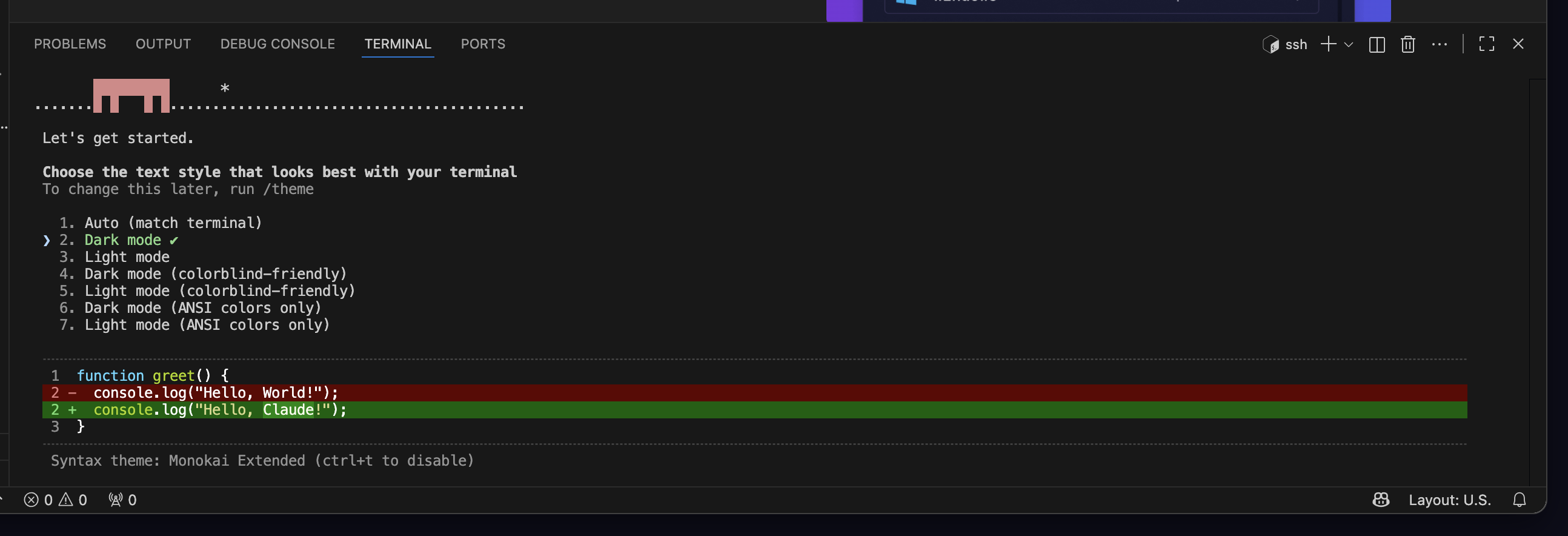
Claude Code asks which text style looks best in your terminal. Dark mode is already selected. Press Enter to accept it.
Step 4 — Choose how to sign in
Claude Code asks how you want to sign in. The first option is sign in with a Claude.ai subscription account. That option is already selected. Press Enter to accept it.
Step 5 — Copy the sign-in link
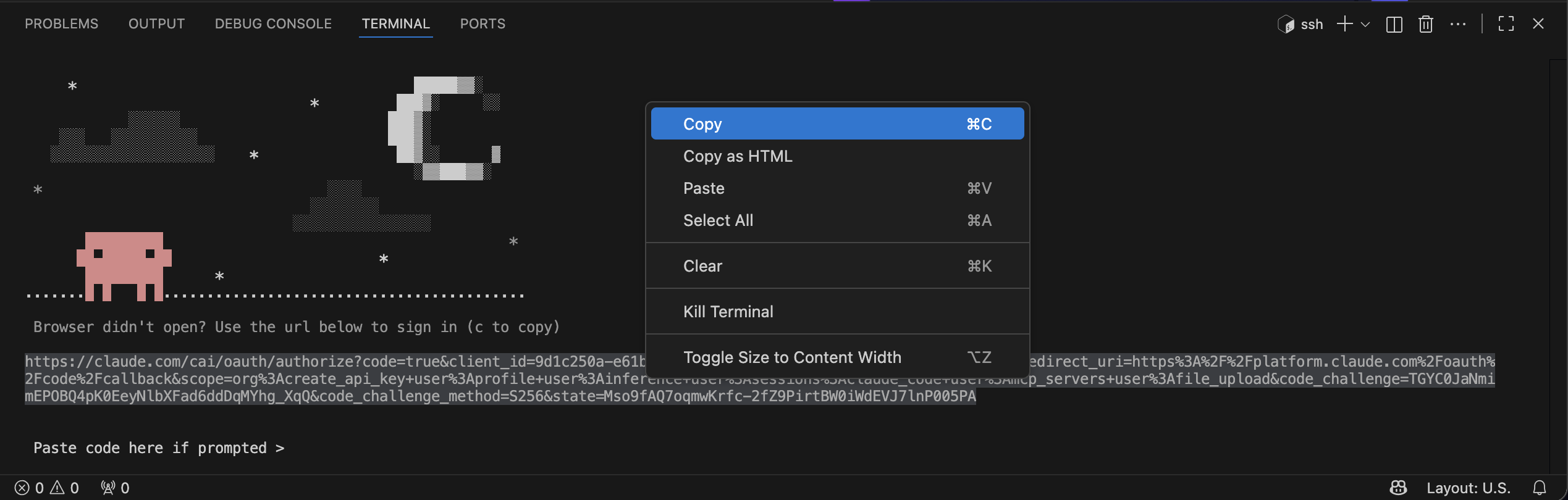
Claude Code prints a long web address that starts with
https://claude.com/. Highlight the whole address with your mouse. Right-click
the highlighted text. Click Copy.
Step 6 — Authorize Claude Code
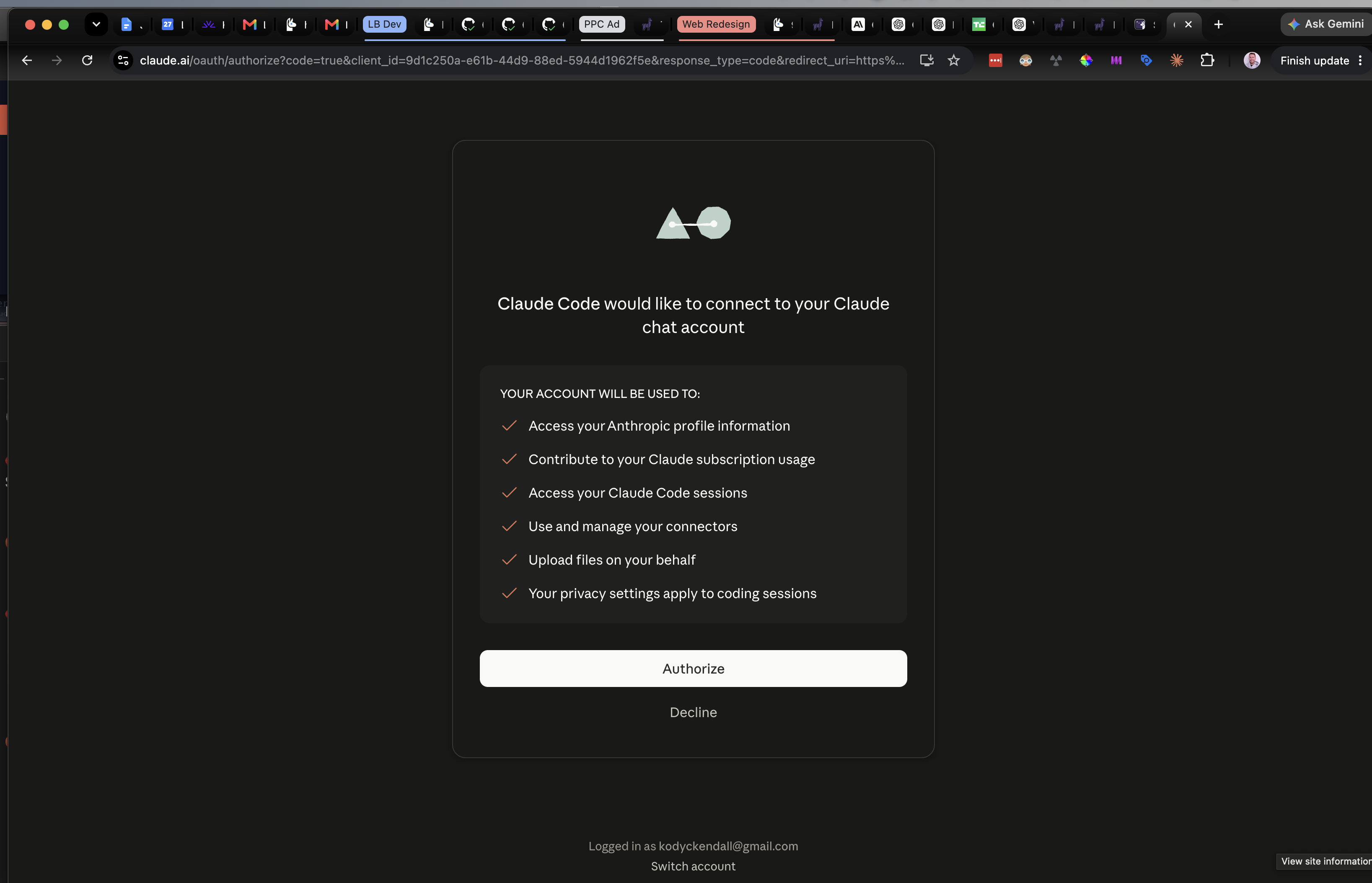
Open a new browser tab. Paste the address into the address bar. Press Enter. Anthropic asks you to sign in, then shows a page titled Claude Code would like to connect to your Claude chat account. Check that the account listed at the bottom is the right one. Click Authorize.
Step 7 — Copy the authentication code
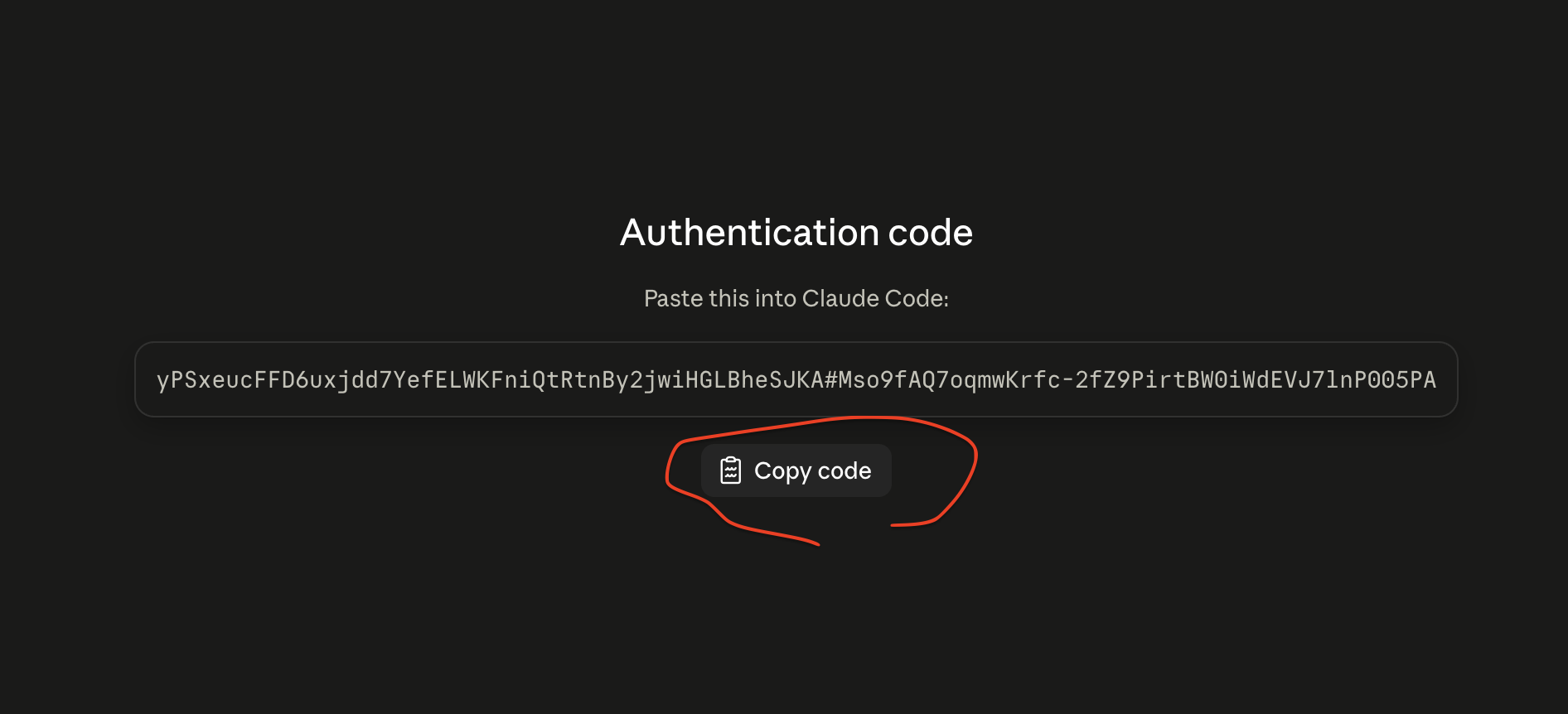
Anthropic shows a page titled Authentication code. Click Copy code.
Step 8 — Allow clipboard access
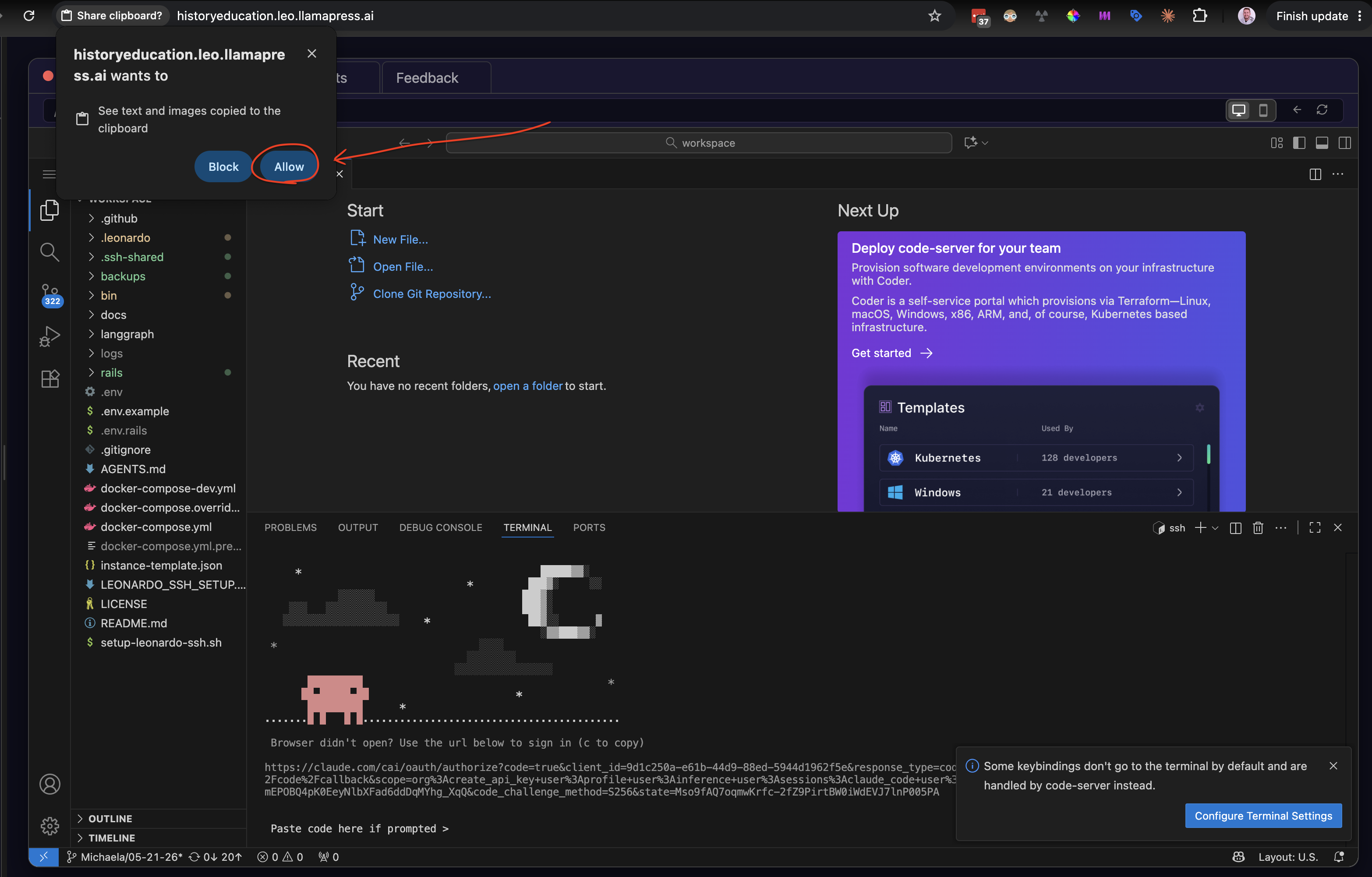
Go back to the browser tab with your app. Your browser may ask for permission to read your clipboard. Click Allow. Without this, the editor cannot paste the code.
Step 9 — Paste the code into the terminal
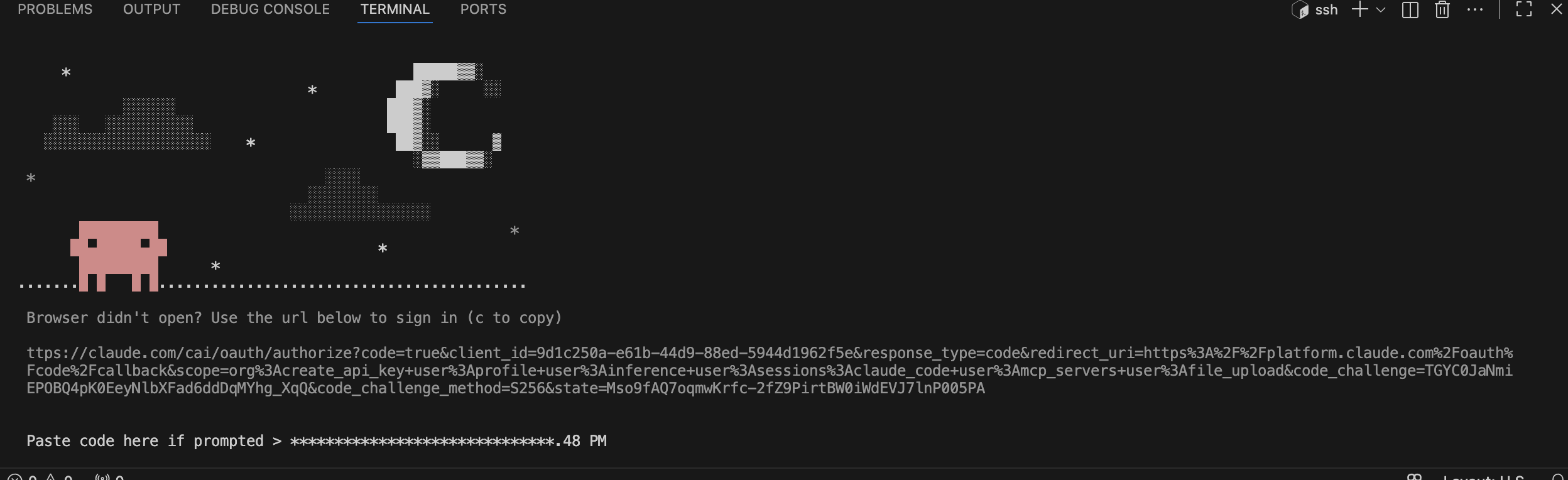
Click the terminal, next to the prompt that says Paste code here if prompted >. Paste the code. Press Enter.
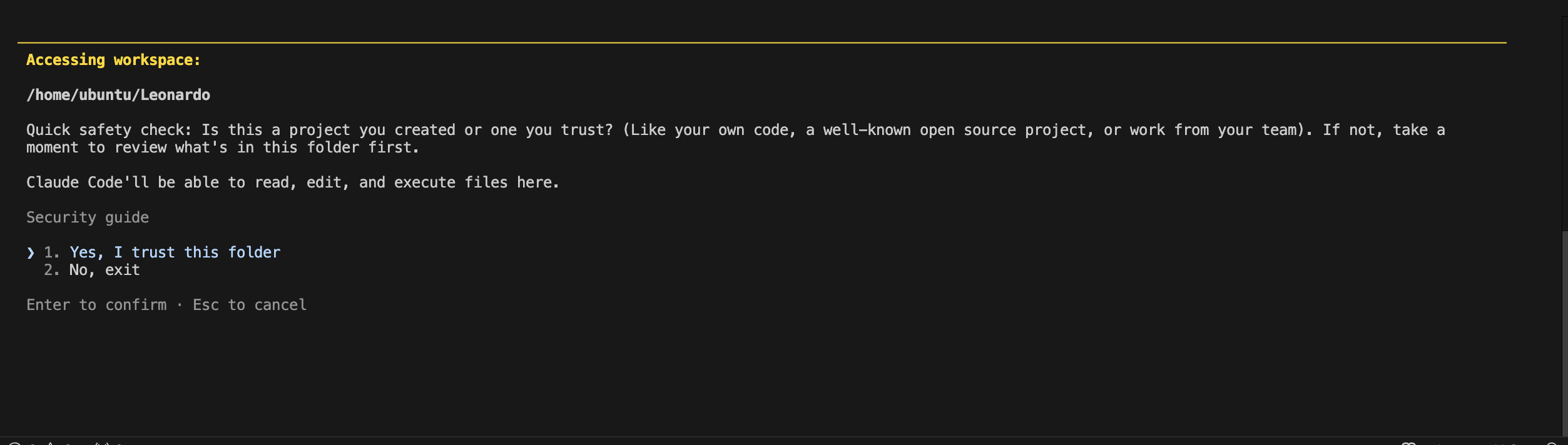
Step 10 — Trust the folder
Claude Code asks if you trust the folder /home/ubuntu/Leonardo. That folder is
your own app. Choose 1. Yes, I trust this folder. Press
Enter.
Step 11 — Accept bypass permissions mode
Claude Code shows a warning about Bypass Permissions mode. Read it. Choose 2. Yes, I accept. Press Enter.
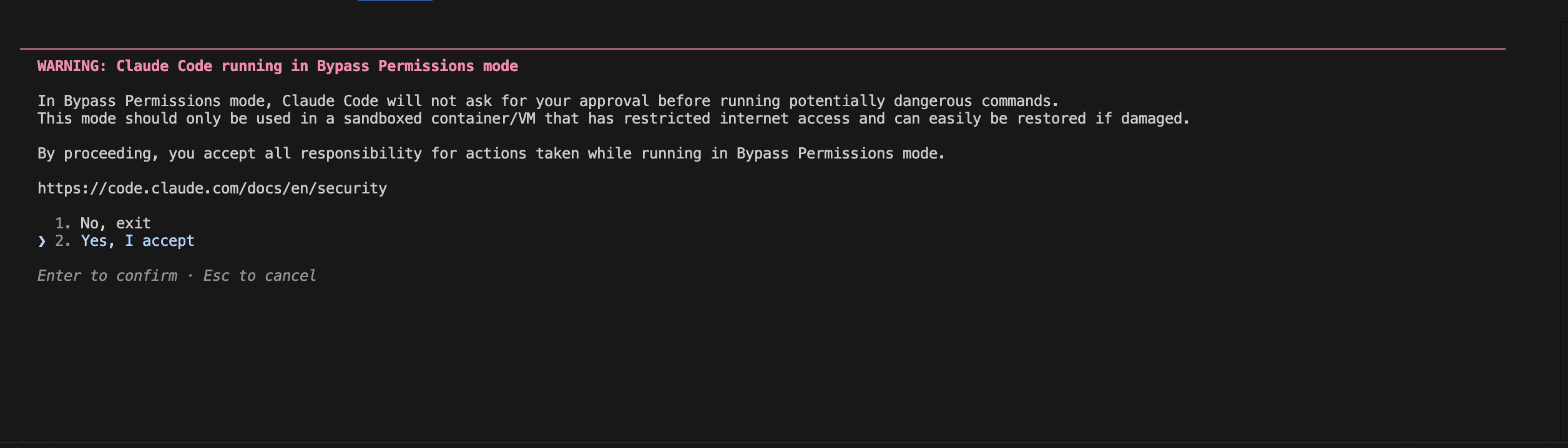
What bypass permissions mode means. Claude Code will run commands and edit files without asking you to approve each one first. This is why your app runs in its own isolated container: the damage stays inside your own app, and we can restore it. Still, read what Claude proposes before you tell it to do large or risky work. To turn approvals back on later, press Shift+Tab to cycle modes.
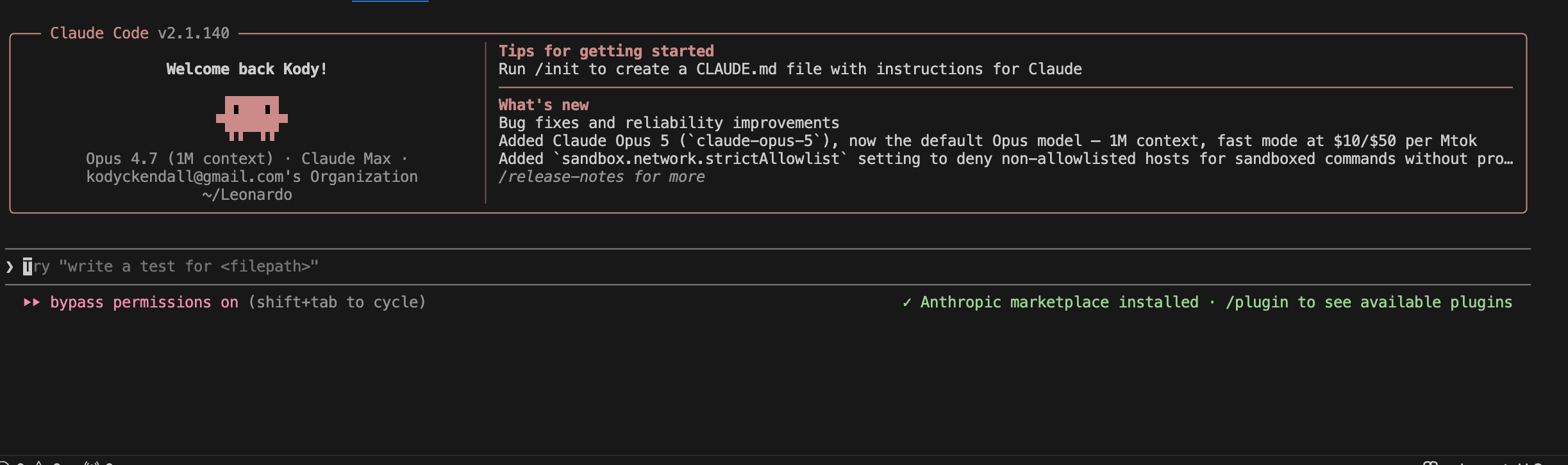
You're done
Claude Code now shows a welcome box with your name, your plan, and the folder
~/Leonardo. Type a request at the prompt, the same way you talk to Leo.
Everyday use
- Start it again: type
claudedin the terminal. You will not have to sign in again. - Stop it: press Ctrl+C twice, or type
/exit. - See what changed: your edits appear in the file list on the left, and in your history and checkpoints.
- Reload your app: switch back to the Your App tab and refresh the page to see the changes.
Things to know
- You pay Anthropic directly. Claude Code usage counts against your own Claude.ai subscription. It is not included in your LlamaPress plan.
- Leo and Claude Code share the same files. Avoid running both on the same files at the same time, or they can overwrite each other's work.
- Your app has a memory limit. Claude Code uses a lot of memory. On smaller plans it can be shut down while it runs. If that keeps happening, email support@llamapress.ai and we will check your app's memory.
- Keep your VS Code password private. Anyone with it can edit your app's code. Email support@llamapress.ai if you need it changed.
Related guides
- Checkpoints and version history — save a restore point before you start.
- Getting your source code — download your code or connect GitHub.
- Leo tools and features — what the Code, Tickets, and Feedback tabs do.
- You own your app — what ownership means here.
Need your VS Code password, or stuck on a step? Email support@llamapress.ai and we'll walk through it with you.